Arrow tool
How to add arrows to a screenshot
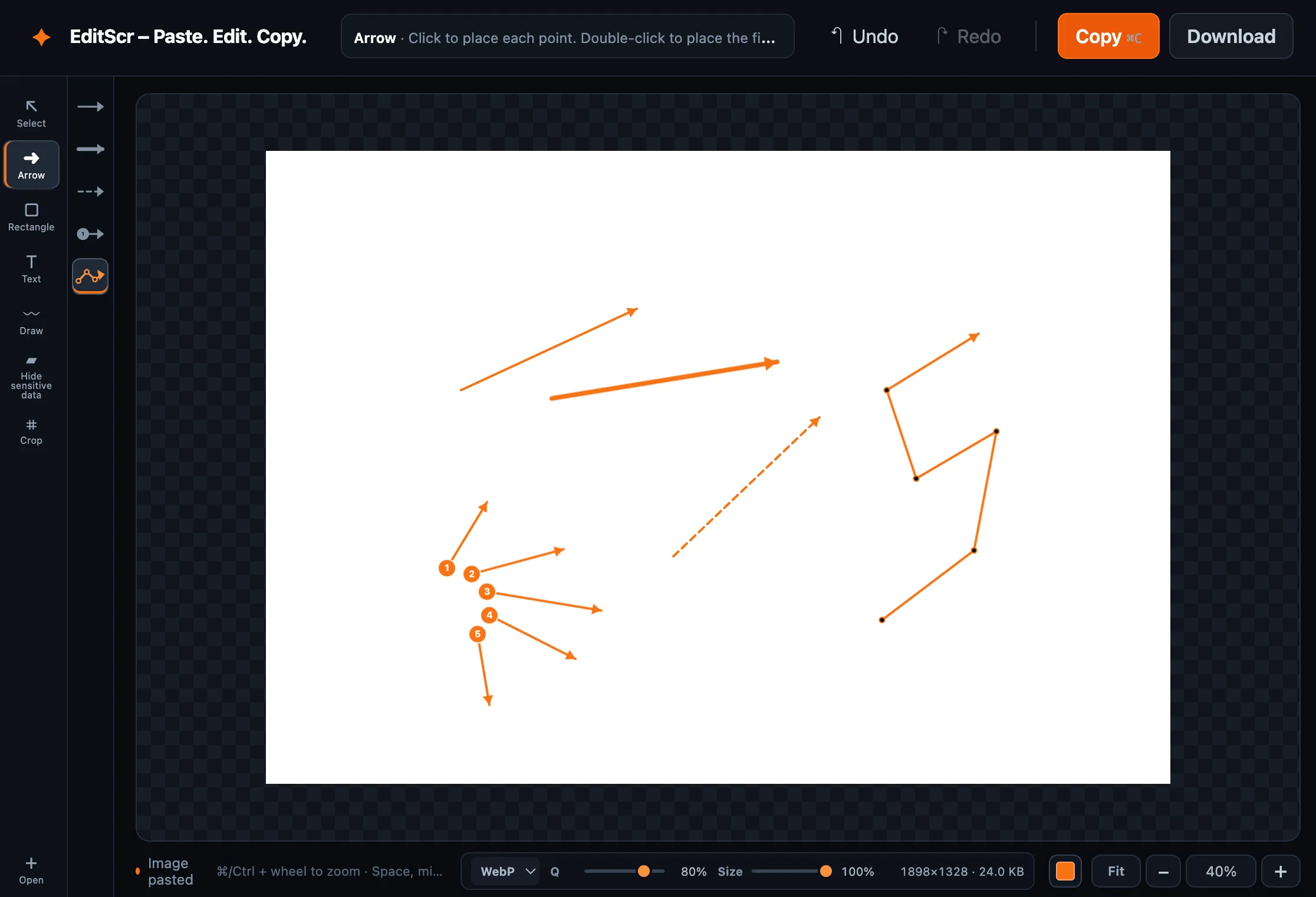
Arrows are often the clearest way to show what someone should click, read or do next. EditScr includes five arrow presets for instructions, feedback and step-by-step walkthroughs.
Try the Arrow tool. Paste a screenshot first, then press A.
Open EditScrDraw an arrow
- Paste or open a screenshot.
- Select Arrow in the left toolbar, or press A.
- Choose a preset in the narrow preset column.
- Drag from the starting point to the destination.
The arrow is selected after drawing. Drag it to move it or use its visible handles to resize it. Select a color from the color control in the lower-right corner before drawing, or while an arrow is selected to update its color.
Choose the right arrow preset
- Standard arrowA simple, balanced pointer for most screenshots.
- Bold arrowA heavier arrow that stays visible over busy imagery.
- Dashed arrowUseful for optional paths, a connection or a softer emphasis.
- Numbered arrowAdds a numbered starting marker for ordered instructions.
- Point path arrowClick to place each bend; double-click to add the final arrowhead.
Edit or remove an arrow
Switch to Select with V, then click the visible arrow. Drag to reposition it, resize it from its handles, or press Delete or Backspace to remove it. Use Undo if you remove or move it by mistake.