Shape tool
How to add shapes to a screenshot
Shapes make interface feedback precise. Use an outline to frame a button, input or panel; use a filled shape when you want the area itself to stand out.
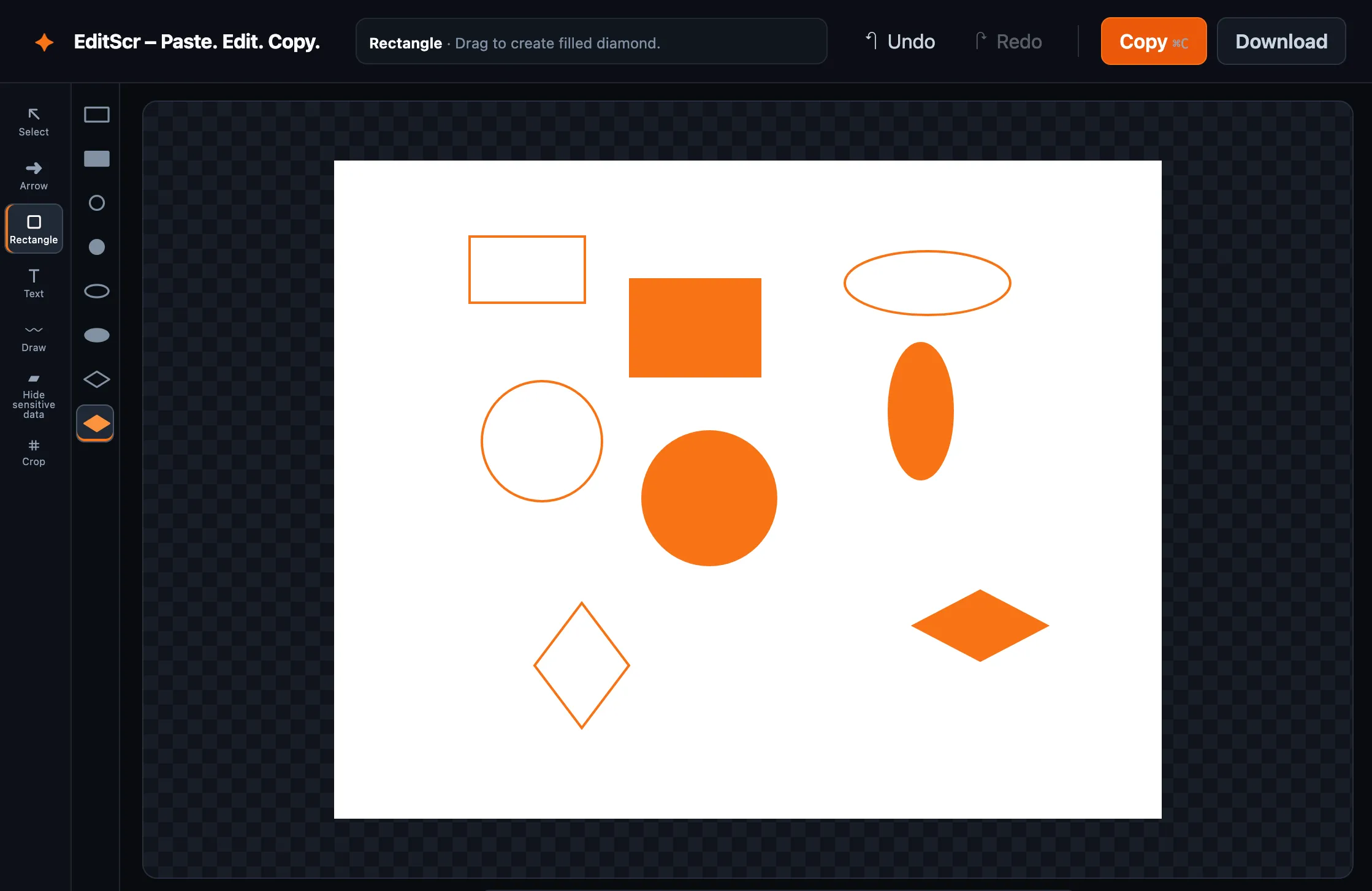
Try the Shape tool. Paste a screenshot first, then press R.
Open EditScrDraw a shape
- Load a screenshot into EditScr.
- Select Rectangle in the left toolbar, or press R.
- Choose a shape preset in the preset column.
- Drag across the part of the image you want to frame.
Choose your annotation color from the lower-right color control. To adjust a finished shape, select it with the Select tool and drag it or its handles.
Shape presets
- Outline rectangleA dependable choice for buttons, panels and selected areas.
- Filled rectangleUse a translucent filled area for stronger emphasis.
- Outline circleDraw attention to a small, round detail.
- Filled circleHighlight a round control or point on an image.
- Outline ovalFrame a wider, less rigid area.
- Filled ovalAdd an emphasized oval highlight.
- Outline diamondUse a diamond for a visual callout.
- Filled diamondAdd a bolder diamond marker.
Combine shapes with other annotations
A shape works especially well with an arrow or short text label. Draw the shape first, then add the annotation above it. If the wrong object is selected, press V and click directly on its visible edge or fill.