Draw tool
How to draw on a screenshot
Freehand drawing is useful when a shape would feel too rigid: circle a small detail, underline a sentence, or add a quick visual cue while giving feedback.
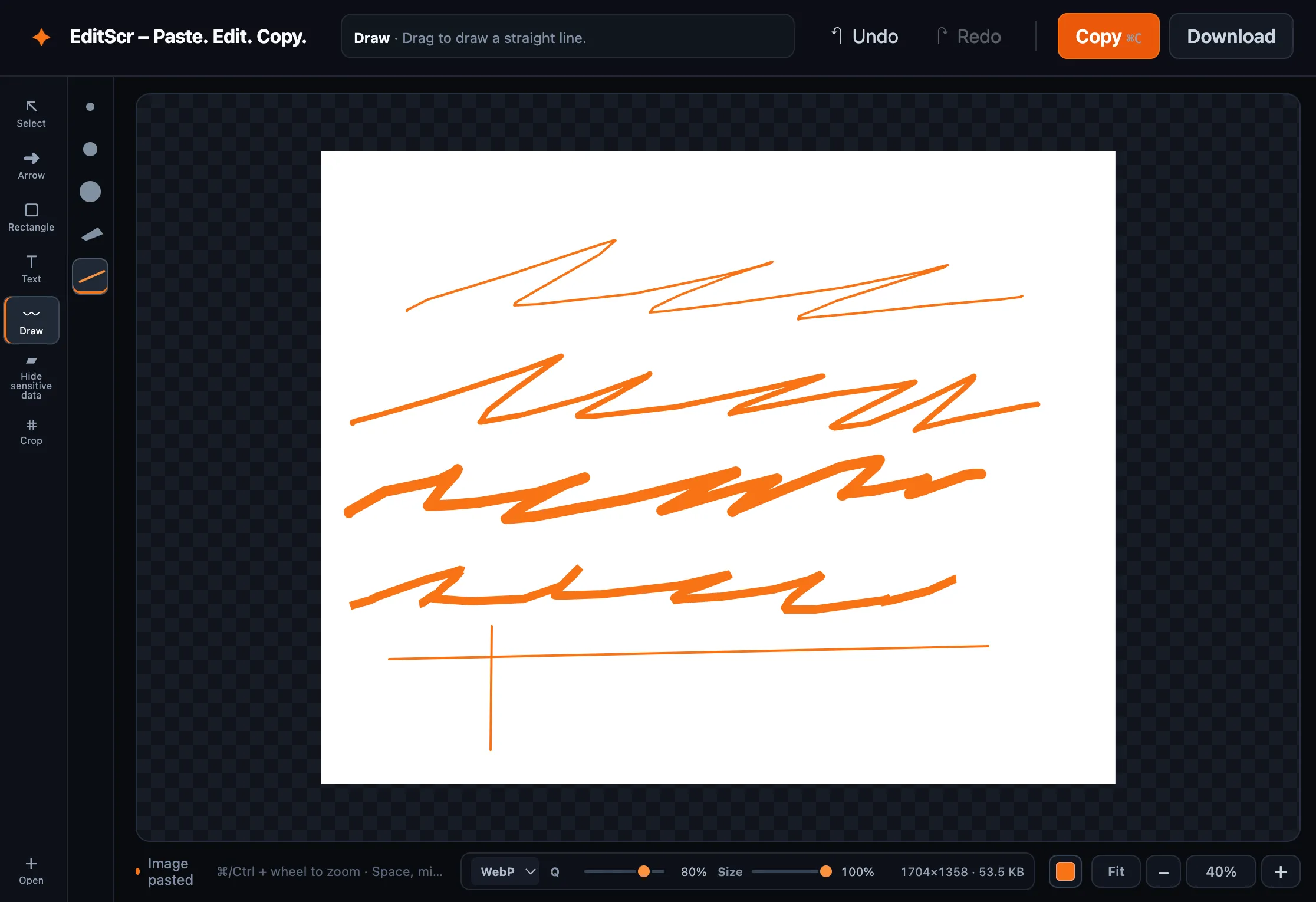
Try the Draw tool. Paste a screenshot first, then press D.
Open EditScrDraw a line
- Load a screenshot into EditScr.
- Select Draw in the toolbar, or press D.
- Choose a brush preset.
- Choose a color from the lower-right color control.
- Drag across the screenshot.
Hold Shift as you drag to keep a freehand stroke horizontal or vertical. To move or remove a finished drawing, switch to Select with V, then click the visible stroke.
Drawing presets
- Thin brushA restrained freehand line for small details.
- Bold brushA stronger line that remains clear in a reduced image.
- Heavy brushA large, high-visibility marker.
- Calligraphy penA stylized pen stroke for a more expressive annotation.
- Straight lineDrag from one point to another for a clean, direct line.
When to use Draw
Use Draw for informal marking and highlighting. For a destination or sequence, an arrow is clearer. For an exact UI boundary, use a shape instead.