Text tool
How to add text to a screenshot
Text gives a screenshot the context that arrows and shapes cannot provide on their own. Use it for a short instruction, an explanatory label or a precise name.
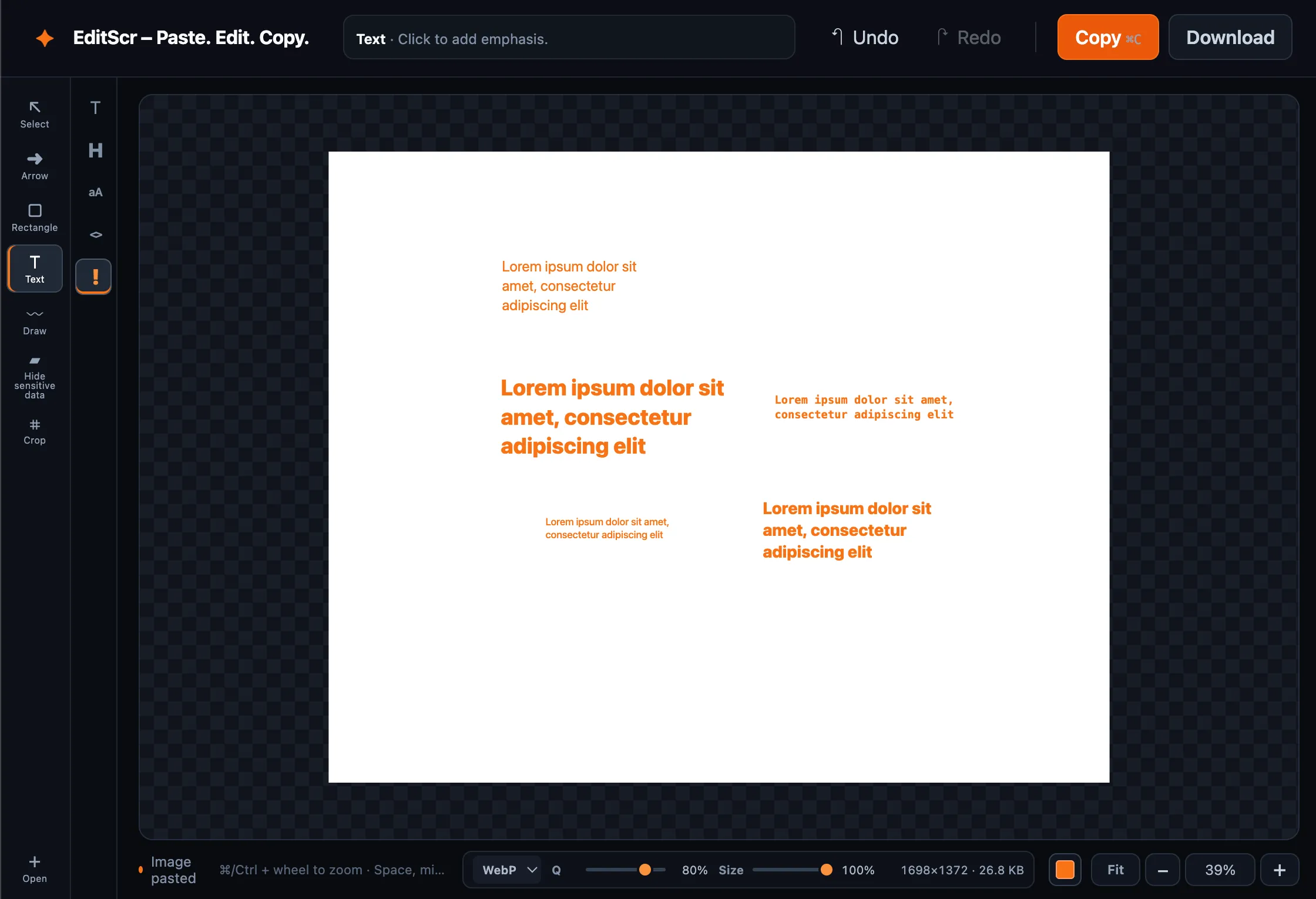
Try the Text tool. Paste a screenshot first, then press T.
Open EditScrAdd and edit text
- Load a screenshot.
- Select Text in the left toolbar, or press T.
- Choose a text preset in the preset column.
- Click where the text should begin and type your label.
- Click outside the text to finish editing.
Select the text again with V to move or resize it. Select a color from the lower-right color control before adding text or while the text object is selected.
Text presets
- Standard textThe default choice for clear labels and short instructions.
- HeadingUse for an important section or a title on the image.
- CaptionA smaller, quieter label for supporting context.
- Code labelA monospaced style for identifiers, commands and field names.
- EmphasisA high-impact callout for a warning or important note.
Keep labels useful
Keep labels brief and put them close to the thing they describe. For a numbered sequence, combine text with numbered arrows. When an area needs more visual framing, add an outline shape behind the label.