Crop tool
How to crop a screenshot
Cropping removes everything outside the part of the screenshot you want to share. It is the fastest way to make an image more focused and easier to read.
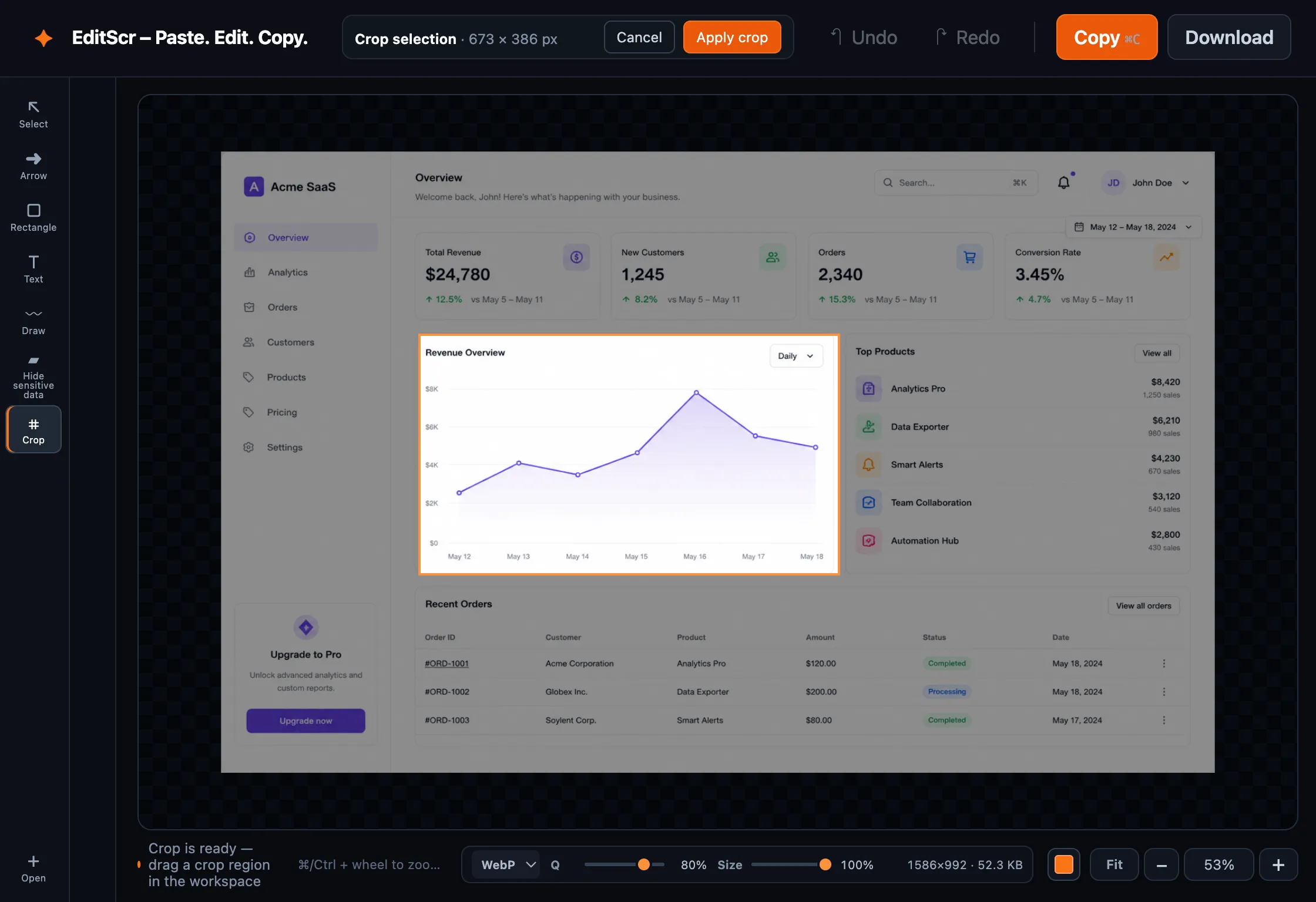
Try the Crop tool. Paste a screenshot first, then press C.
Open EditScrCrop an image
- Load a screenshot.
- Select Crop in the left toolbar, or press C.
- Drag over the area you want to keep.
- Review the outlined crop region.
- Select Apply crop in the top bar, or double-click inside the workspace.
To abandon the pending crop, select Cancel. The source image is not changed until you apply the crop, and Undo can restore a previous step after it is applied.
Crop before export
The crop is included when you copy or download the finished screenshot. Any annotations outside the retained portion are not part of the final image, so crop before your final review. You can still add arrows, shapes, text or redactions to the cropped image.
A useful cropping rule
Keep enough surrounding interface context that a viewer can understand the highlighted element, but remove browser tabs, unrelated panels and empty space that do not help the explanation.