Download workflow
How to download a screenshot as PNG, JPG or WebP
Download is the right finish when you need a file to attach, archive or upload elsewhere. EditScr creates a new flattened file from your crop and annotations.
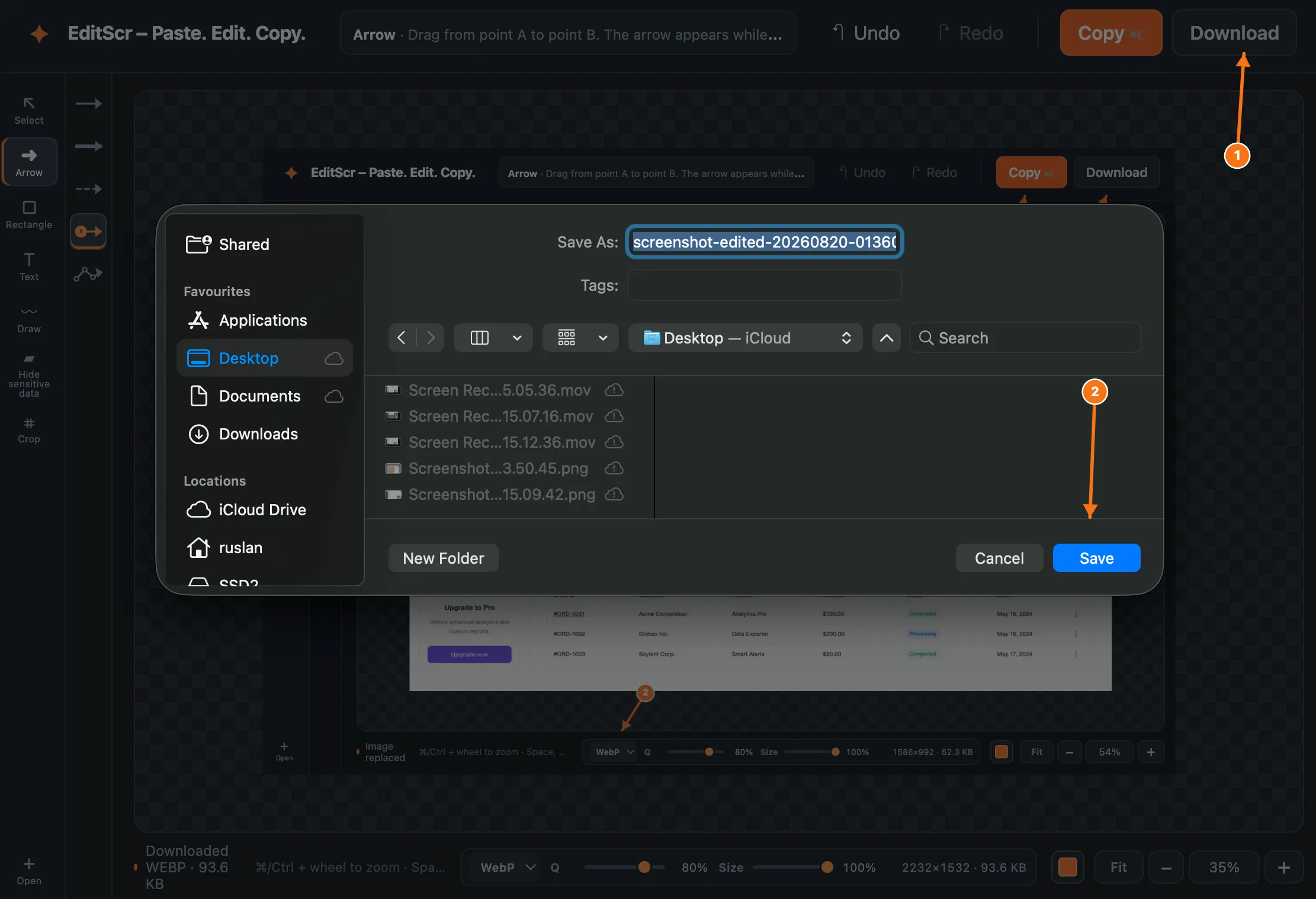
Export the finished screenshot locally.
Open EditScrDownload the finished image
- Complete your edits.
- Choose PNG, JPG or WebP in the export controls below the workspace.
- For JPG or WebP, choose the quality level you need.
- Use Size to reduce the output dimensions if needed.
- Select Download in the upper-right corner.
The file is downloaded by your browser with a timestamped filename. Nothing is uploaded to EditScr while exporting.
Choose an export format
- PNGLossless and ideal for interface screenshots, text and sharp annotation edges. PNG does not use the quality control.
- JPGA smaller lossy file for image-heavy screenshots when exact pixel detail is less important.
- WebPOften a smaller modern format with good visual quality. Availability depends on browser support.
Quality and size are different
Quality controls compression for JPG and WebP. Size changes the pixel dimensions of every export format. Reducing both can make a smaller file, but too much reduction can make text and fine UI details harder to read.