Hide sensitive data tool
How to redact or pixelate a screenshot
Before sharing a screenshot, hide passwords, email addresses, account numbers, private messages and any other information that should not leave your screen.
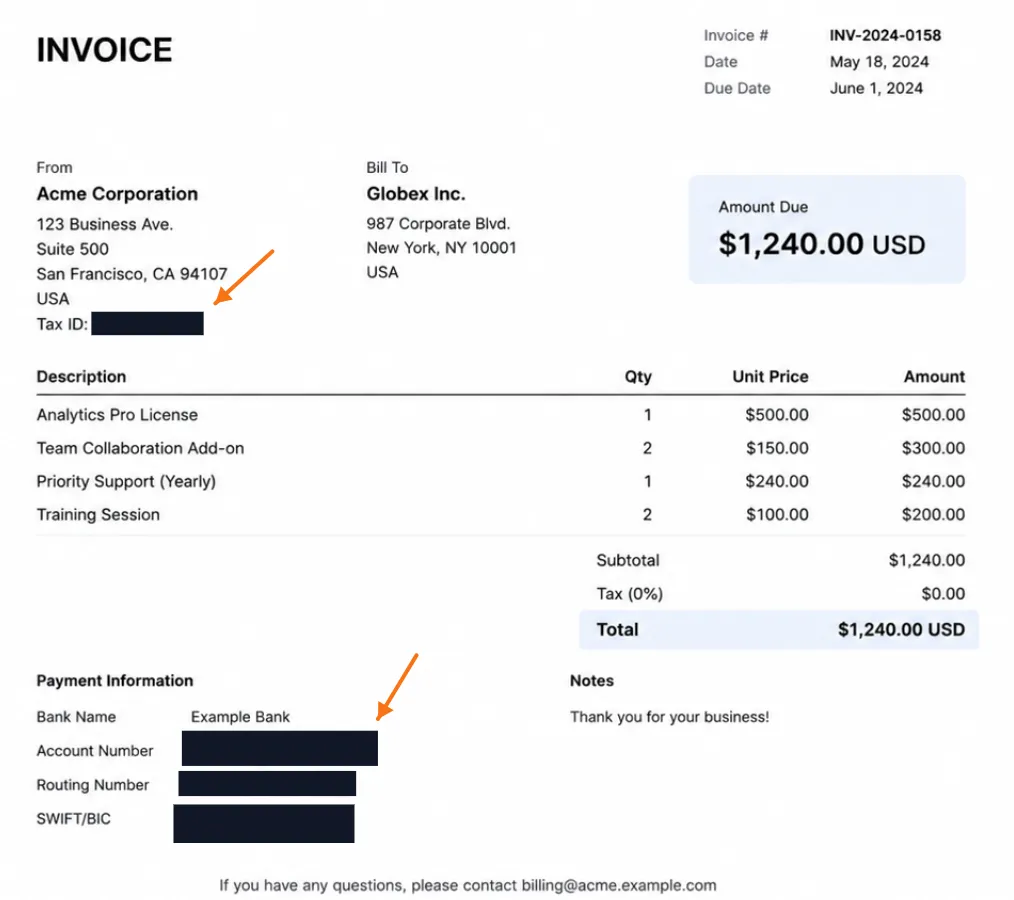
Protect a screenshot before you share it. Paste the image, then press B.
Open EditScrHide an area
- Load your screenshot.
- Select Hide sensitive data in the toolbar, or press B.
- Choose Redact or Pixelate in the top bar.
- Drag over the information that should be hidden.
Redact places a solid black cover over the original pixels. Pixelate creates a mosaic treatment that retains only the broad visual shape. Select the region again to move, resize or delete it.
When to redact and when to pixelate
- Redact is the safest, clearest option for passwords, tokens, private contact details and sensitive text.
- Pixelate works when the viewer can still benefit from recognizing the general area without being able to read its content.
Check before you export
Zoom in and make sure every sensitive element is fully covered. Look for text at the edges of the region, browser profile images, notification previews and IDs in a URL bar. Then copy or download the flattened output; the original source remains private in your browser.
Important: sharing the original screenshot instead of the edited export will not include the redaction. Always paste or attach the copied/downloaded result.