Getting started
How to paste a screenshot from the clipboard
The fastest way to start is to take a screenshot, open EditScr, and paste it. The image is processed in your browser and is not uploaded to a server.
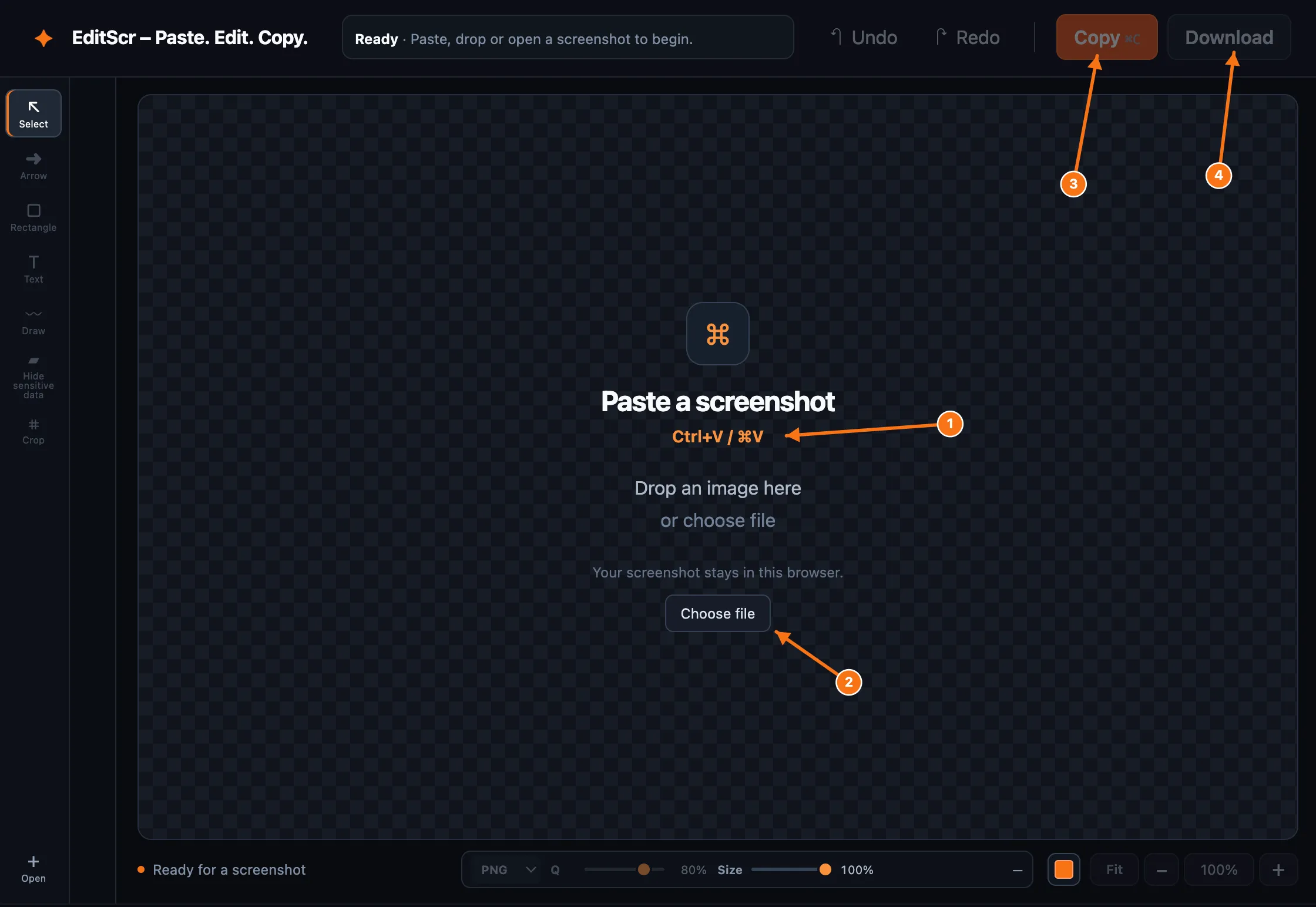
Paste a screenshot directly into the editor.
Open EditScrPaste from your clipboard
- Take a screenshot using your operating system’s screenshot shortcut.
- Open EditScr in a modern browser.
- Press Ctrl + V on Windows or Linux, or ⌘ + V on macOS.
- Wait for the image to appear in the workspace, then choose an annotation tool.
If your clipboard contains text instead of an image, EditScr will keep waiting for an image. Take or copy the screenshot again and paste it once more.
Other ways to add an image
You can drag a supported image file anywhere onto the editor. You can also select Open in the left toolbar or Choose file in the empty workspace.
Supported input formats
EditScr accepts PNG, JPG/JPEG and WebP images. For reliable local editing, the file must be 50 MB or smaller, no side can be larger than 20,000 pixels, and the full image must be no more than 30 million pixels. Very large images may still be slower to edit or export.
Privacy note: adding an image does not send it to EditScr. The source image stays in browser memory while you work.