Complete workflow
How to edit a screenshot online
EditScr is designed for a fast loop: paste a screenshot, point out what matters, hide what does not, and share the finished image. Everything happens locally in your browser.
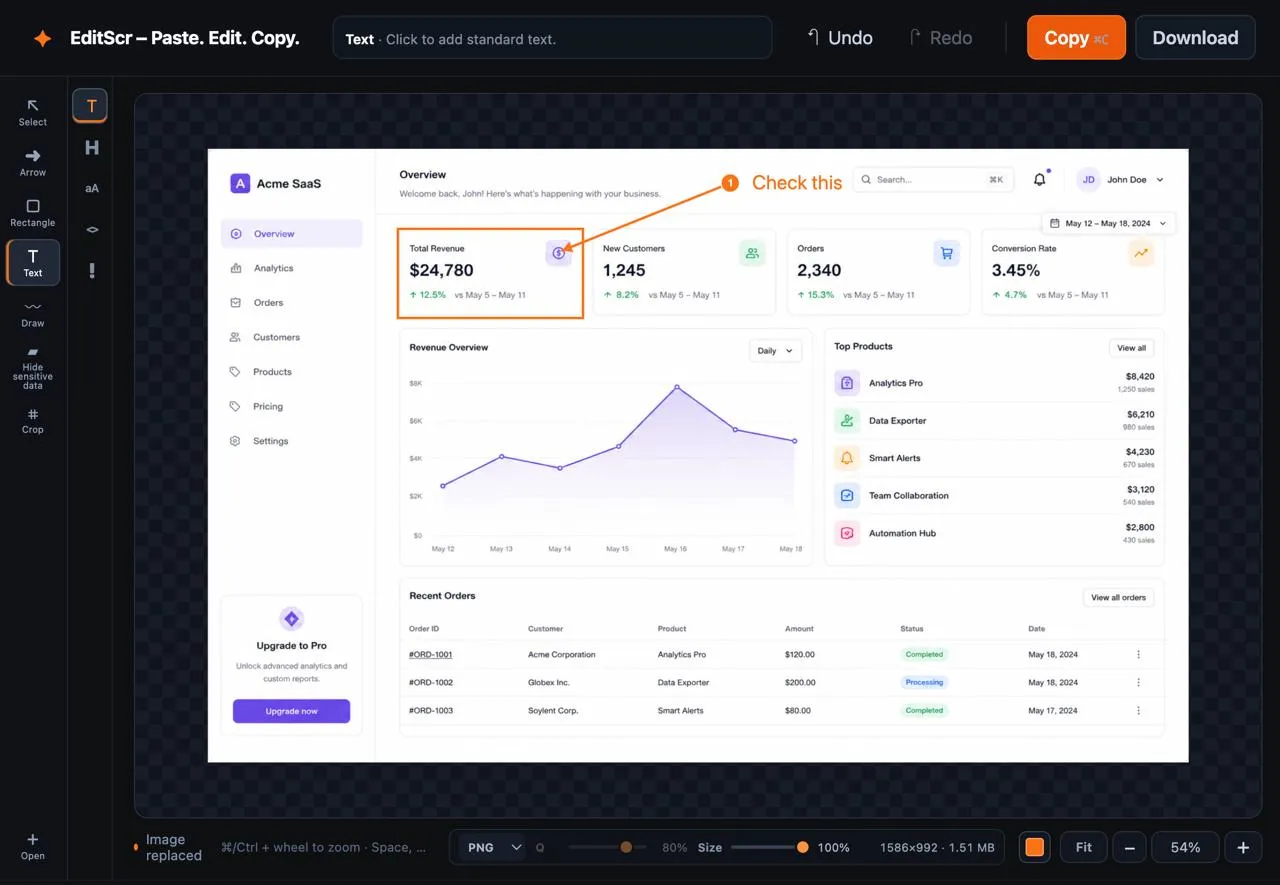
Use the editor now. No account, installation or upload is required.
Open EditScr1. Add a screenshot
Press Ctrl + V on Windows or ⌘ + V on Mac to paste a screenshot from your clipboard. You can also drop an image anywhere in the editor or choose a PNG, JPG or WebP file.
2. Add the right annotation
Choose a tool from the left toolbar. Arrows make a sequence easy to follow; shapes frame an area; text gives context; and drawing is useful for quick highlighting. Click an annotation again to move, resize or delete it.
- Add arrows to show a direction or order.
- Add shapes around an interface element.
- Add text to clarify an instruction.
- Draw on a screenshot for freehand markup.
3. Crop and protect information
Use Crop to remove unneeded parts of the screen. Use Hide sensitive data to cover confidential details with a solid redaction or a pixelated area. Annotations are placed above a redaction, so an arrow or label can still point to the protected region without exposing the original pixels.
4. Copy or download the result
Select Copy to place a PNG copy on your clipboard, ready to paste into chat, email, documents or issue trackers. Select Download when you need a file. You can choose PNG, JPG or WebP, adjust JPG/WebP quality, and reduce export dimensions before saving.